Always Free · No Signup

Resize one image or a whole folder, to any size

Set exact pixels, scale by percentage, or pick a ready-made size for Instagram, YouTube, X, Facebook, LinkedIn, TikTok, and Pinterest. Batch up to 20 images at once — all in your browser.

Runs entirely in your browser. Your files never leave your device.

How to resize an image

  1. 1

    Add your images

    Drop in up to 20 JPG, PNG, WebP, or HEIC files. Nothing is uploaded — your browser does the work.

  2. 2

    Set the size

    Type exact pixel dimensions, scale by percentage, or choose a social media preset such as Instagram Story or YouTube thumbnail.

  3. 3

    Resize and download

    Press Resize, then grab a single file or the whole batch as a ZIP. The original format is kept.

Image resizing questions

Open the presets list and pick Instagram Post (1080 × 1080), Portrait (1080 × 1350), or Story (1080 × 1920). If your photo is a different shape, choose Fill to crop it to the frame, or Fit to keep the whole picture and pad the edges. Instagram re-compresses whatever you upload, so starting from a correctly sized file is the single biggest quality win.

Making an image smaller is safe: this tool steps the image down in halves rather than jumping straight to the target, which avoids the jagged edges you get from a single-pass resize. Keep the original format — PNG stays PNG, so screenshots and graphics stay pixel-exact. Quality is only really lost when you enlarge, because there is no extra detail to recover.

YouTube recommends 1280 × 720 pixels, a 16:9 ratio, with a minimum width of 640 pixels and a file under 2 MB. Pick the YouTube Thumbnail preset and the dimensions are filled in for you. If your source photo is not 16:9, Fill crops it to shape so nothing is letterboxed on the watch page.

Fit scales the whole image down until it sits inside your target box and pads the leftover strips with white, black, or transparency — nothing is cut off. Fill scales the image up to cover the box and trims the overhanging edges from the centre — nothing is padded. Use Fit for logos and product shots, Fill for backgrounds and covers.

Drop in up to 20 files at once and the same width, height, or percentage is applied to every one of them. Mixed orientations are handled by the fit mode you pick, so a folder of portrait and landscape shots still comes out at one consistent size. Download them individually or take the batch as a ZIP.

Enlarging stretches the pixels you already have, so a small photo will always look softer at a larger size. Upscaling is therefore off by default and targets bigger than the original are capped instead. Switch on Allow upscaling if you need the exact dimensions regardless; an AI upscaler that reconstructs detail is coming soon.

No, and there is no mechanism for one. The resizing happens on your own machine, so there is no per-user meter to run down and no cost on our side that would justify a cap. The only limits are practical: 20 files per batch to keep the browser responsive, and 4096 pixels on the longest edge.

Mobile browsers, Safari on iPhone in particular, silently produce a blank canvas beyond a certain pixel area, and the failure gives no warning. Capping each side at 4096 pixels keeps results reliable on every device. Anything larger is scaled proportionally to that limit.

More free tools

Beyond Resizing

Compose for the Format, Don't Cut Down to It

Resizing rearranges pixels after the fact, and a square crop of a wide photo throws away half the frame. The studio generates at the ratio you ask for, so the composition is built for the format from the start.

  • Generate square, portrait, and wide takes on the same idea
  • Describe the framing you want instead of dragging a box
  • Produce a short vertical video for the same campaign
Explore Studio Features
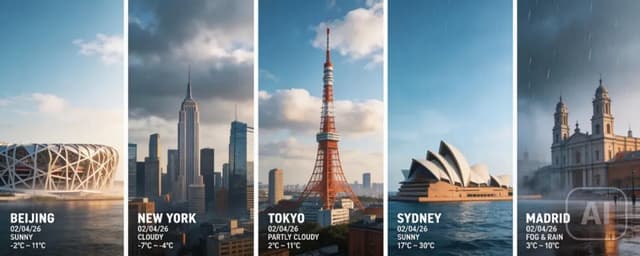
Five city cards generated at the same vertical ratio, ready to publish without cropping